Take the following rules into consideration:
- Never use the Task Code B100 for Client 9876
- Do not use the Personnel Type “Other Timekeeper” for Client 1010.
- Do not use the Activity Code A102 on an entry with Task Code B110.
If your firm needs to enforce these rules as firm policy or via a client mandate, establishing a List Rule can see that the rules are automatically enforced.
Mandates Made Easy
Mandated billing clients will often reject items on bills that are not for ‘approved’ codes or timekeepers. Rules can easily check for these items.
Creating a List Rule
The instructions below are to establish a List Rule using the example rule of: “Never use the Task Code B100 for Client 4901.” These steps can also be followed to create other List Rules.
-
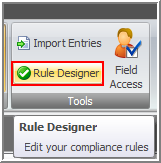
From MyJuris select Tools > Rule Designer.
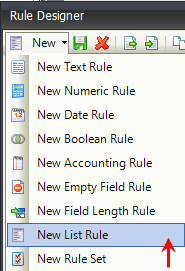
- Click the down arrow beside the New icon and select New List Rule from the drop-down list.
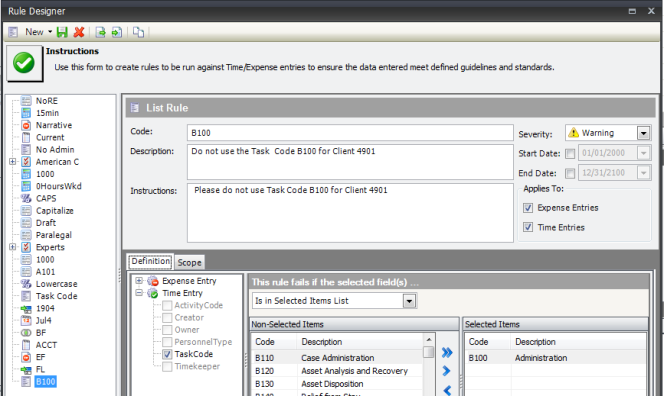
- Enter a Code and Description for the rule. In this example we will name the rule B100 and enter 'Do not use the Task Code B100 for Client 9876' as the Description.
- Select a Severity: Error, Required, Warning, Message.
- If desired, a Start Date and End Date can be assigned to the rule. A start and end date allow you to define a time frame for the Rule. For example if you only want the rule to be run in the current year or a specific month.
- Enter instructions for the rule. The instructions will be shown when an item is rejected based on the rule and will give the user specific instructions on how to resolve the violation. In this example we will enter the instructions: Please do not use Task Code B100 for Client 4901.
- On the Definition tab, select the fields where the rule should be applied. You can expand Time Entry and Expense Entry to see the available fields. In this example we will place check marks beside the field Task Code under Time Entry.
- Next on the Definition tab, enter the rule fail criteria. In this example since we are eliminating a specific date, under the text: 'This rules fails if the selected field(s)... Select Is in Selected Items List and move B100 to the 'Selected Items' list You can add multiple items to the selected list if needed.
-
On the Scope Tab, you'll see Time Entry and Expense Entry. The default is checked for both as well as 'Global'. See below for assigning the scope to a particular group. For this example, uncheck Global. Click on Time Entry and select Client - All Matters, then enter 4901 in the Client field.

Defining a Scope At times you may want to define and enforce a Scope for a Rule or Rule Set.Click here to learn more.
- Save the rule by clicking the Save icon.